MyClone promises a bold idea: clone your voice and knowledge, then let that AI handle customer messages, support tickets, and routine conversations around the clock. It sounds like science fiction. It works like automation. And if you run a small business, an agency, or offer coaching, it could be the kind of leverage you actually need.
This guide walks through what MyClone does, how to set it up, the practical wins and current limitations, and a step-by-step path to embed a MyClone assistant into your WordPress site. Expect hands-on tips, honest caveats, and a real-world checklist you can follow today.
This MyClone Review post is just an English version of a Japanese video I shared.
Why you might need a MyClone
Messages never stop. Tickets pile up. Your inbox runs your life. Sound familiar? If you feel like you spend more time being a support desk than steering the business, MyClone is built for you.
What it actually does is simple and brutal: it copies your knowledge and your voice so you don’t have to answer the same questions 100 times. It replies, it books, it captures leads, and it talks—literally. You get time back. Your customers still get quick answers.
Big wins in plain language
- 24/7 responses — MyClone handles inquiries while you sleep.
- Consistent answers — Train it once and replies follow your tone.
- Voice and text — Use chat or a speaking clone of your voice.
- Embed anywhere — Place it on your site as a widget or a full page.
Yes, it’s not perfect. But it’s not trying to be human. It’s trying to be useful. And in many cases, that’s worth everything.
What MyClone actually offers
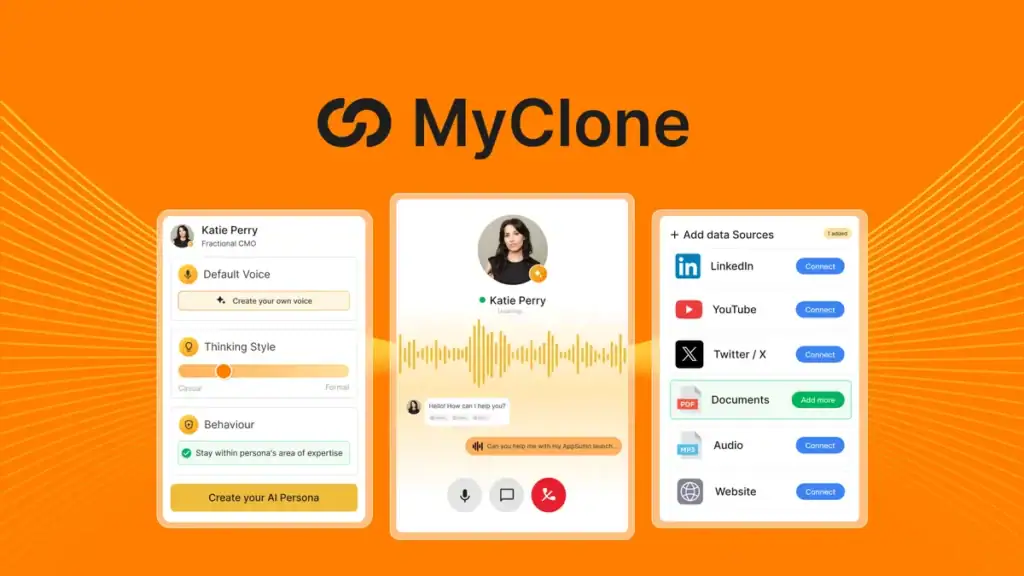
Think of MyClone as three layers stacked together:
- Knowledge layer — Import docs, social posts, website pages, and more so the AI knows your business.
- Persona layer — Create personalities or roles with initial greetings and specialties.
- Voice layer — Record or upload voice samples to replicate how you sound.
These three layers combine into a working clone that replies by text or voice, and can be embedded as a chat widget or full-page assistant. It also keeps conversation history so you can review and fine-tune responses.
Installing and importing knowledge
First, feed your MyClone the stuff it needs to be helpful. This is the most important step. Garbage in, garbage out still applies.
Data sources you can use
- Social profiles like Twitter/X
- Website pages and blogs
- Documents, FAQs, and PDFs
- Audio, video, and YouTube transcripts
MyClone has an import flow in its knowledge library. You click to add a data source, connect an account or upload files, and import. The interface shows import progress and gives you a list of sources it’s consuming.
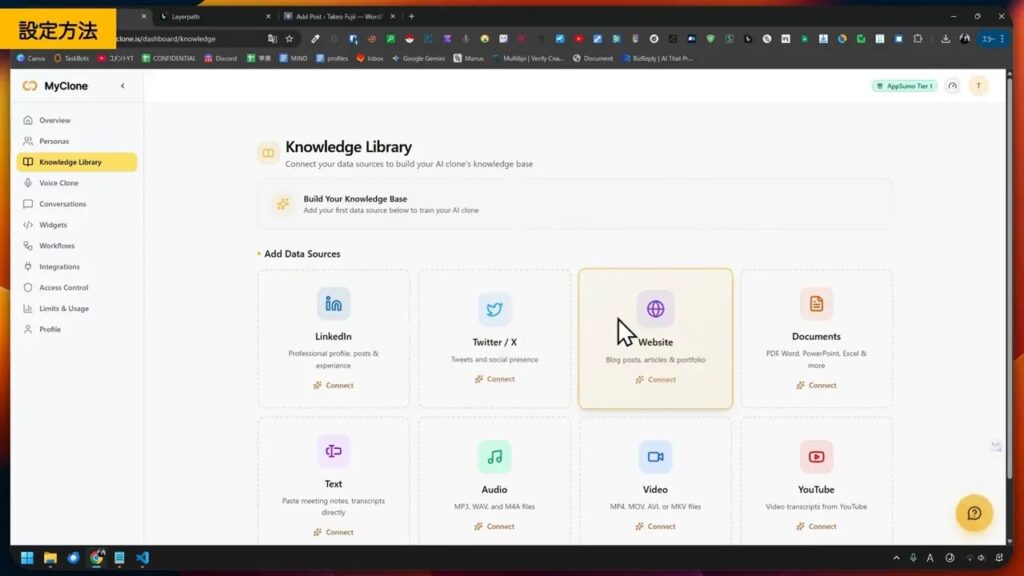
Start with your FAQ and main product pages. Add your pricing page. Add a short bio and any standard replies you send for returns, shipping, or scheduling. This is how your clone learns to respond like you.
Practical tips for importing
- Prioritize — Add FAQ and payment/shipping pages first.
- Clean files — Remove irrelevant text and duplicates before import.
- Chunk it — Break long PDFs into smaller sections for better retrieval.
- Label sources — Use clear names so you can track where answers come from.
Recording a voice clone
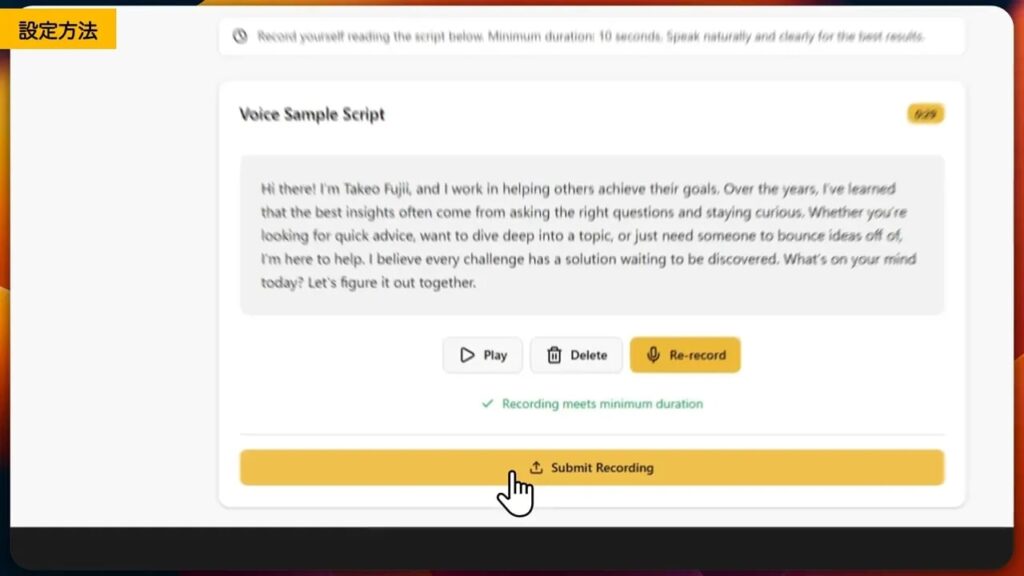
Yes, MyClone lets you clone your voice. You can record directly or upload an audio file. It guides you through sample scripts to create a usable voice model.
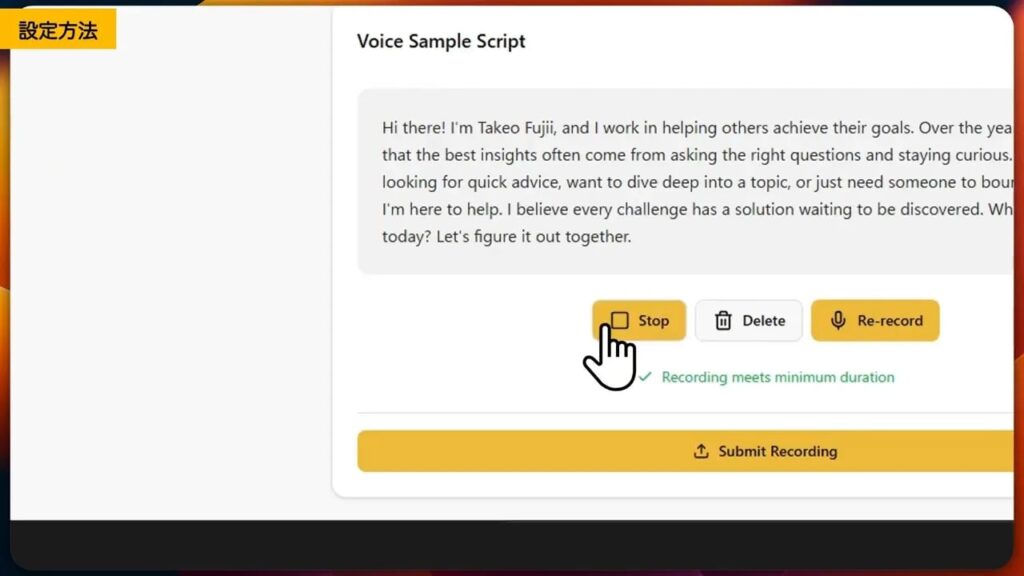
Recording is straightforward. You read the provided script, submit it, and wait for the voice model to build. The end result: a voice that can read replies aloud. Use it for a more natural support experience or to add trust to conversions.
Voice clone tips
- Use a quiet room and a good microphone.
- Read the script naturally. No need to be theatrical.
- Upload multiple clips if allowed; more data equals better models.
- Test short replies first to make sure the tone matches.
Persona: make your clone act like you
A persona is where personality and rules live. Give the clone a name, a role, a list of expertise, and a default welcome message. This is how you set expectations for visitors.
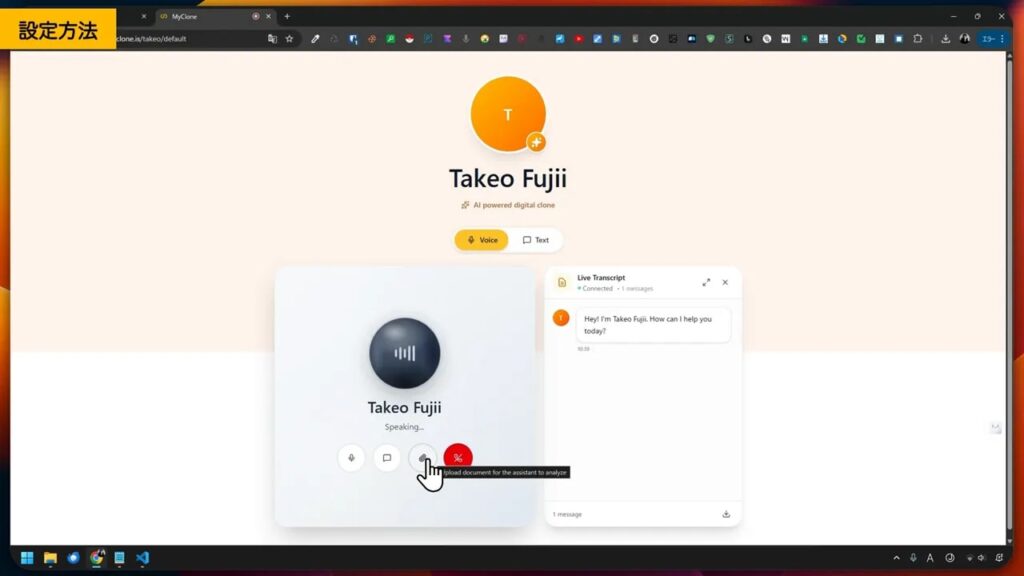
Create several personas if you play multiple roles. For example, one persona that handles sales questions and another that handles technical support. MyClone supports multiple personas depending on your plan.
What to write into a persona
- Short intro — Who this persona is and what it can do.
- Tone instructions — Friendly, formal, concise, or technical.
- Fallback rules — When to escalate to a human.
- First message — The greeting that appears when a chat starts.
Testing voice and text
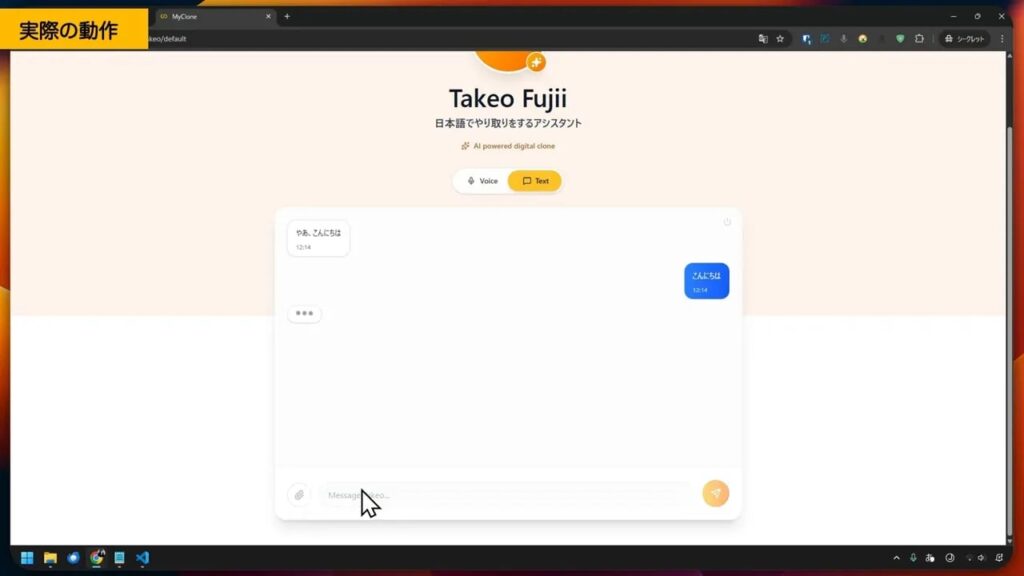
MyClone supports text chat and voice chat. Text is solid for Japanese. Voice works well in English, but there’s a catch with spoken Japanese recognition right now.
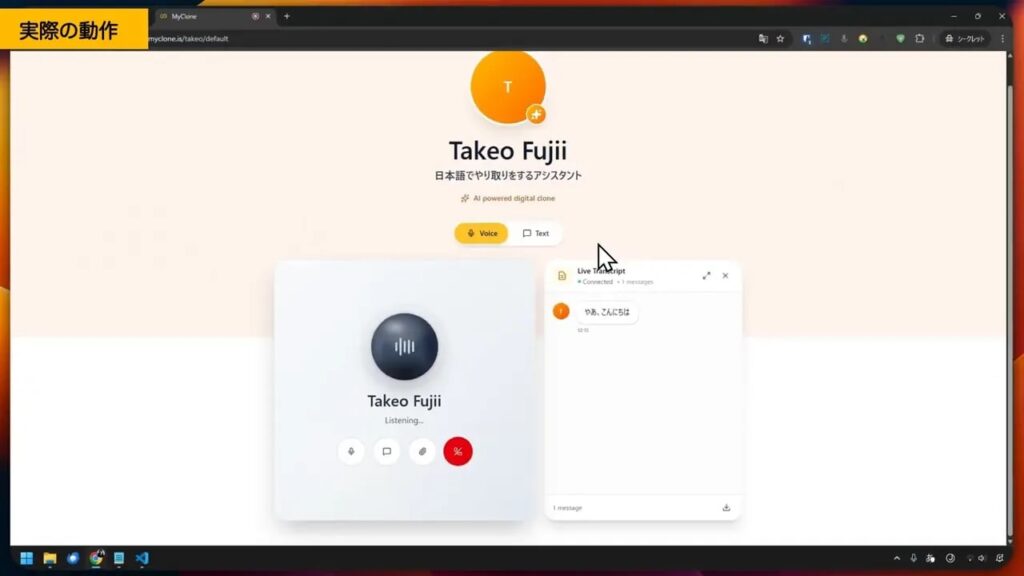
When you speak in English, the voice chat recognizes input and replies naturally. When you speak Japanese, the assistant can produce Japanese responses, but incoming Japanese voice recognition may stutter. The workaround is to send a short English command telling MyClone to reply in Japanese. It then speaks Japanese fine.
So for now:
- Text chat: Good for Japanese and will reply fluently.
- Voice chat: Best with English input. Japanese responses are possible, but voice recognition of Japanese is limited.
Embedding MyClone on WordPress
Putting MyClone on your site is one of the most useful moves. You can embed as a floating bubble, a full page, or a block inside a landing page. The widget editor lets you control color, size, layout, and position. You can tailor the appearance to match your brand.
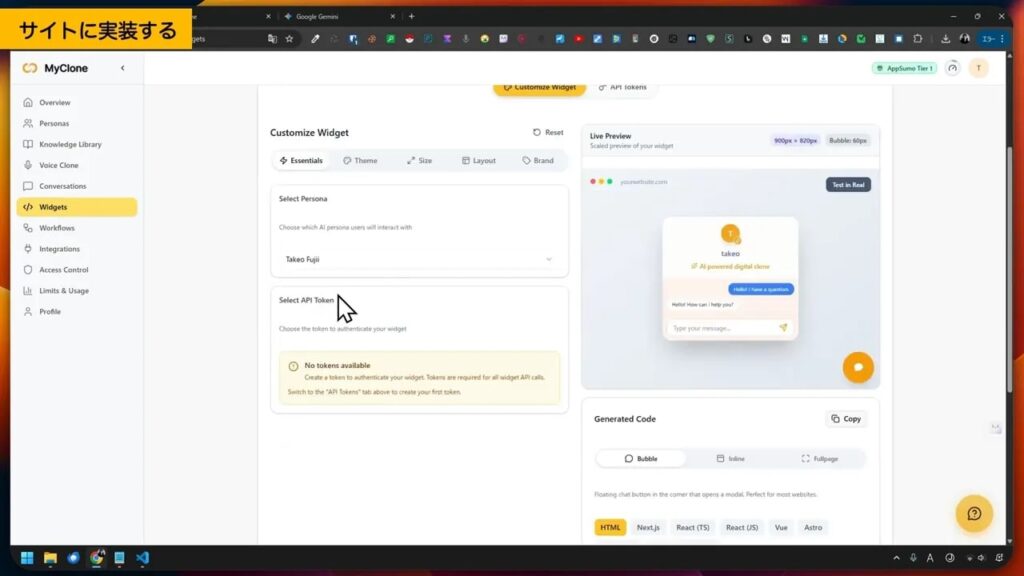
Steps to embed on WordPress
- Open the widget configuration and choose “WordPress.”
- Copy the embed script provided by MyClone.
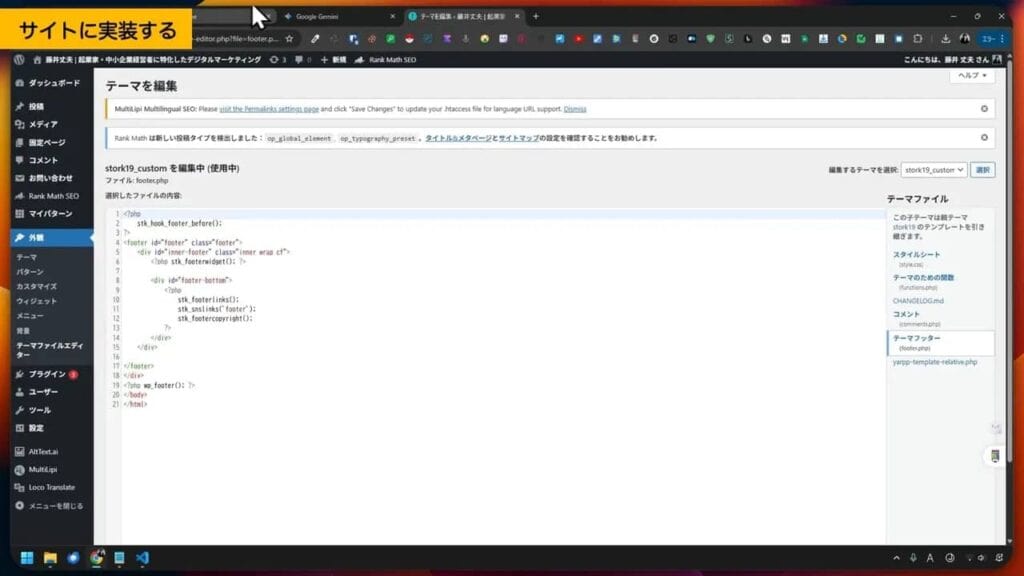
- In WordPress, go to Appearance > Theme File Editor.
- Preferably use a child theme. Open footer.php or the appropriate template file.
- Paste the script just before the closing body tag and save.
- Reload your website and test the chat bubble.
After embedding, visitors will see a chat icon in the corner. They can text or press the voice button. Text-based Japanese conversations work smoothly. Voice-based Japanese may require the English-command workaround mentioned earlier.
Widget customization that matters
Small UI choices change conversion behavior. MyClone’s widget settings let you tweak:
- Theme color and branding
- Bubble vs. embedded widget
- Positioning (right bottom, right middle, inline)
- Layout (compact or full chat window)
Flip these until the widget blends with your site. The right placement gets more interactions without annoying users.
Conversation history and management
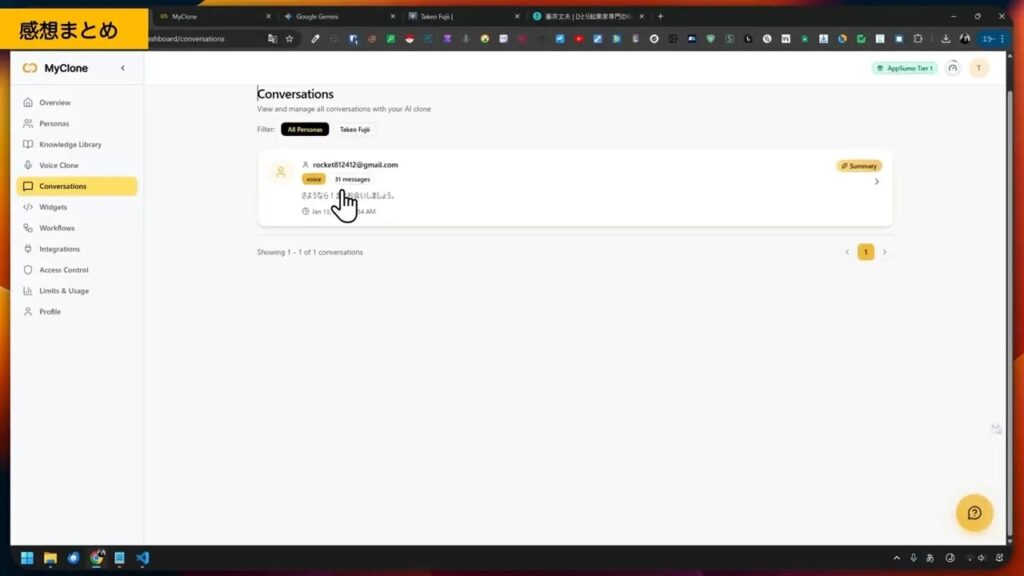
Every conversation is stored. You can audit user questions, review AI replies, and download logs. That’s critical for quality control and customer service accuracy.
Use the history to:
- Find gaps in knowledge to import new documents.
- Adjust persona prompts to fix tone problems.
- Recover lost leads or contact info if email capture is enabled.
Extra features worth using
MyClone isn’t just chat. It includes a few bells that can convert a passive visitor into a customer:
- Email capture — Enable to automatically request and store visitor emails.
- Calendar booking — Let visitors book consultations directly through the chat.
- Knowledge sync — Regularly add content from YouTube, docs, and web pages to keep your clone sharp.
Pricing, limits, and tiers
MyClone is currently offered as a buy-once license through special platforms at a promotional price that replaces recurring subscriptions. One affordable purchase gets you lifetime access under the selected tier, plus a 60-day money-back guarantee.
Typical starter tier features (example):
- Voice chat: 60 minutes per month
- Voice clones: 1 voice model
- Personas: Up to 5
- Text messages: Up to 10,000 exchanges per month
- Data sources: Up to 5 GB
Upgrade tiers expand those numbers. For example, a higher tier might provide 180 minutes of voice chat, more voice clones, more personas, up to 30,000 text messages per month, and additional data allowance. Some integrations like Zapier and API access may be locked behind higher tiers.
One-time purchase vs subscription
A one-time purchase is tempting. Pay once and skip monthly fees. But confirm whether the deal includes long-term feature updates. Higher tiers or add-ons may appear later. Always check the roadmap if you rely heavily on integrations or heavy usage.
Real limitations you should know
MyClone is powerful but not flawless. Know these limits before you bet your support flow on it.
- Voice recognition language gaps — Japanese voice input may not be recognized reliably. The clone can speak Japanese if instructed, but it struggles to parse spoken Japanese at the moment.
- Monthly voice time caps — Voice minutes are limited by tier. If your site uses voice heavily, you may hit the limit.
- API and integrations — Lower tiers may restrict Zapier, webhooks, or API access.
- One voice per license — Starter tiers often allow a single voice clone only.
Despite these caveats, the platform is accurate for text and surprisingly natural in English voice replies. Use it for high-volume FAQ tasks first, then expand to more complex workflows once you know its boundaries.
Who should buy MyClone
If any of these fit you, MyClone is worth testing:
- You run a small service business and face repetitive support questions.
- You sell physical or digital products and need 24/7 buyer assistance.
- You coach or consult and want to capture leads and book calls automatically.
- You operate internationally and need an English-first voice assistant for broader reach.
If you need flawless spoken Japanese replies from visitors’ voice input, wait for improvements. For text-based Japanese support and English voice assistants, MyClone already delivers.
Step-by-step quick setup checklist
- Create your MyClone account and pick a plan.
- Import core knowledge: FAQ, product pages, and policies.
- Create one persona and set the default greeting.
- Record or upload a voice sample if you want voice output.
- Test text responses in Japanese and English.
- Test voice chat in English and experiment with the English-to-Japanese command if needed.
- Configure the widget: color, position, and layout.
- Embed on WordPress via the provided script in your footer.
- Enable email capture and calendar if you want leads and bookings.
- Review conversation logs weekly and add missing knowledge sources.
How to handle Japanese voice limitations right now
Two short workarounds make voice usable for Japanese audiences:
- Use text chat for Japanese conversations. It works reliably.
- If voice is required, start the voice session with a short English command like “Please respond in Japanese” so the clone will speak Japanese in replies. Visitors can then switch to text for follow-up.
Not perfect. But functional.
Safety, privacy, and quality control
Training an AI on your content means you must protect sensitive information. Avoid importing confidential internal documents unless you’re sure about storage and retention policies.
Quality control matters. Periodically check conversation logs. Fix erroneous answers by adding trusted content to the knowledge base. Update personas when your policies or offers change.
Quick wins to get from MyClone in the first month
- Deflect 20–30 percent of repetitive inquiries by adding FAQ pages to the knowledge base.
- Capture emails from engaged visitors using the widget’s email capture.
- Book calls automatically with the calendar integration and reduce manual scheduling.
- Save time by letting the clone handle first-level troubleshooting and escalate only when necessary.
Examples of good persona prompts
Make your persona do the heavy lifting. Keep prompts short and specific. Here are starter templates you can adapt.
- Sales persona: “You are Alex, the sales assistant. Keep answers short, focus on value, include pricing ranges, and offer to book a demo.”
- Support persona: “You are Support Bot. Be calm, ask clarifying questions, provide step-by-step fixes, and escalate after two failed attempts.”
- Booking persona: “You handle scheduling. Ask the visitor for preferred dates, show availability, and confirm bookings automatically.”
Common mistakes and how to avoid them
- Rushing imports: Bad content gives bad answers. Clean text before uploading.
- One persona for everything: Separate sales and support personas to avoid awkward replies.
- Over-trusting voice: Use logs. Voice replies can still hallucinate if knowledge is thin.
- Ignoring limits: Watch voice minute usage and upgrade before you hit the cap.
How to measure success with MyClone
Track these KPIs in the first 90 days:
- First response time — It should drop dramatically.
- Tickets deflected — Percentage of queries resolved without human intervention.
- Leads captured — Number of emails or bookings through the widget.
- Customer satisfaction — Quick surveys or follow-up emails after chats.
When to move from starter tier to a higher tier
- When voice minutes regularly max out.
- If you need multiple voice clones for a team.
- If API or Zapier integration is essential for automation.
- When text exchanges approach your monthly cap consistently.
Verdict — is MyClone worth it?
Short answer: yes, if your pain is repetitive messages and time wasted on routine customer work. Text-based flows for multiple languages work well. English voice interactions are natural and convincing.
Longer answer: MyClone gives instant leverage. One-time purchase options and trial windows make testing low-risk. But watch voice-language limits and API restrictions in lower tiers. Treat it as a smart assistant, not a replacement for sensitive or complex human interactions.
Resources and next steps
- Start by mapping the top 20 customer questions you answer every week.
- Prepare those answers as clean text and upload them as the first knowledge sources.
- Record a short voice sample in a quiet room with a decent mic.
- Embed the widget in a staging site and test real interactions before deploying live.
FAQ
What is MyClone?
MyClone is an AI assistant platform that clones your knowledge and optionally your voice to automate customer replies, capture leads, and handle routine tasks. It supports text and voice chat and can be embedded on websites.
Does MyClone support Japanese?
Yes. Text-based Japanese chat works well. Voice-based Japanese has recognition limits: the assistant can speak Japanese if instructed, but incoming spoken Japanese may not be recognized reliably yet.
Can I use MyClone on WordPress?
You can embed a MyClone widget on WordPress using the provided script. Place it in your theme footer or child theme to show a floating chat bubble or an embedded chat window.
How many voice clones can I create?
Starter tiers often allow one voice clone. Higher tiers increase that number. Check the plan details before purchasing if you need multiple voices.
Is MyClone a subscription or a one-time purchase?
It depends on the current offer. Promotional deals sometimes provide a one-time buyout for a specific tier with lifetime access. Ongoing upgrades or certain integrations may still require higher tiers.
Can MyClone collect emails and bookings?
Yes. The widget can capture visitor emails and integrate a calendar booking system so visitors can schedule consults or calls directly through the chat.
Is there a refund policy?
Promotional purchases often include a 60-day refund window. Confirm the guarantee and terms before finalizing the purchase.
How do I improve answers if MyClone gets something wrong?
Review the conversation logs to identify bad responses. Add or update knowledge sources, refine persona prompts, and re-test. Small content imports can fix many errors quickly.
What integrations are available?
Some tiers allow Zapier, API access, and other integrations. Lower tiers may restrict these. If integrations are essential, choose a tier that includes them.
How to activate your MyClone license (AppSumo)
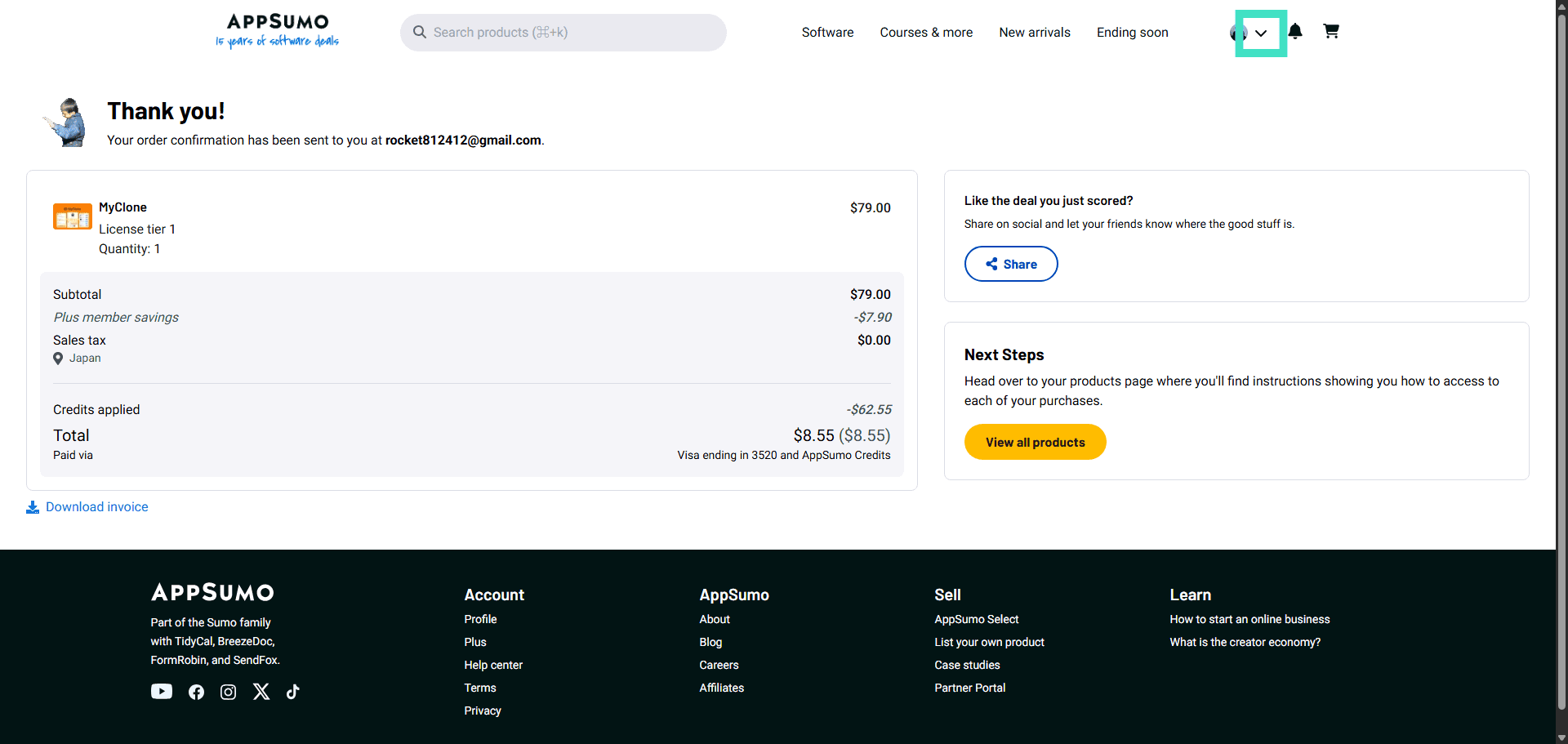
Step 1: Click your powerful dashboard options
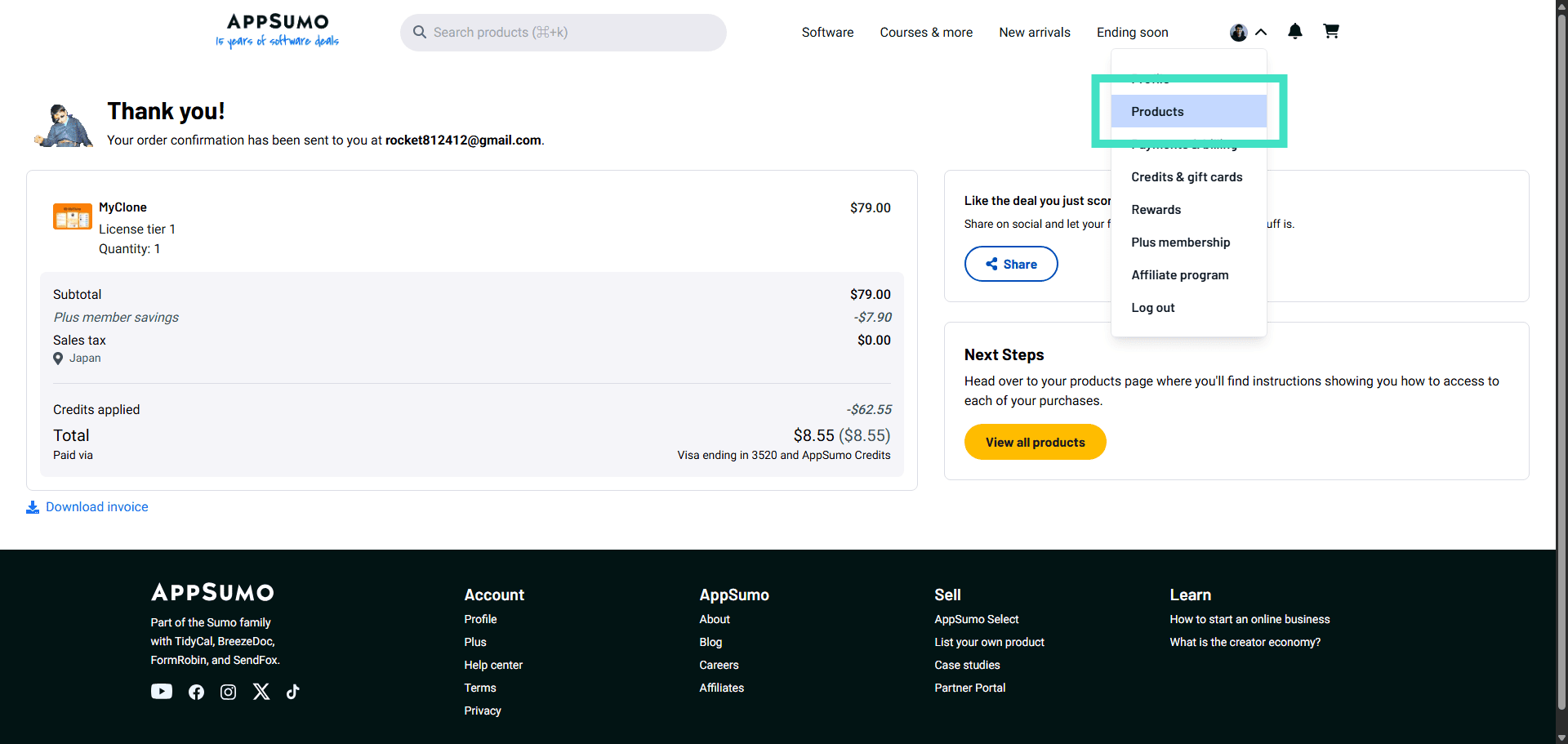
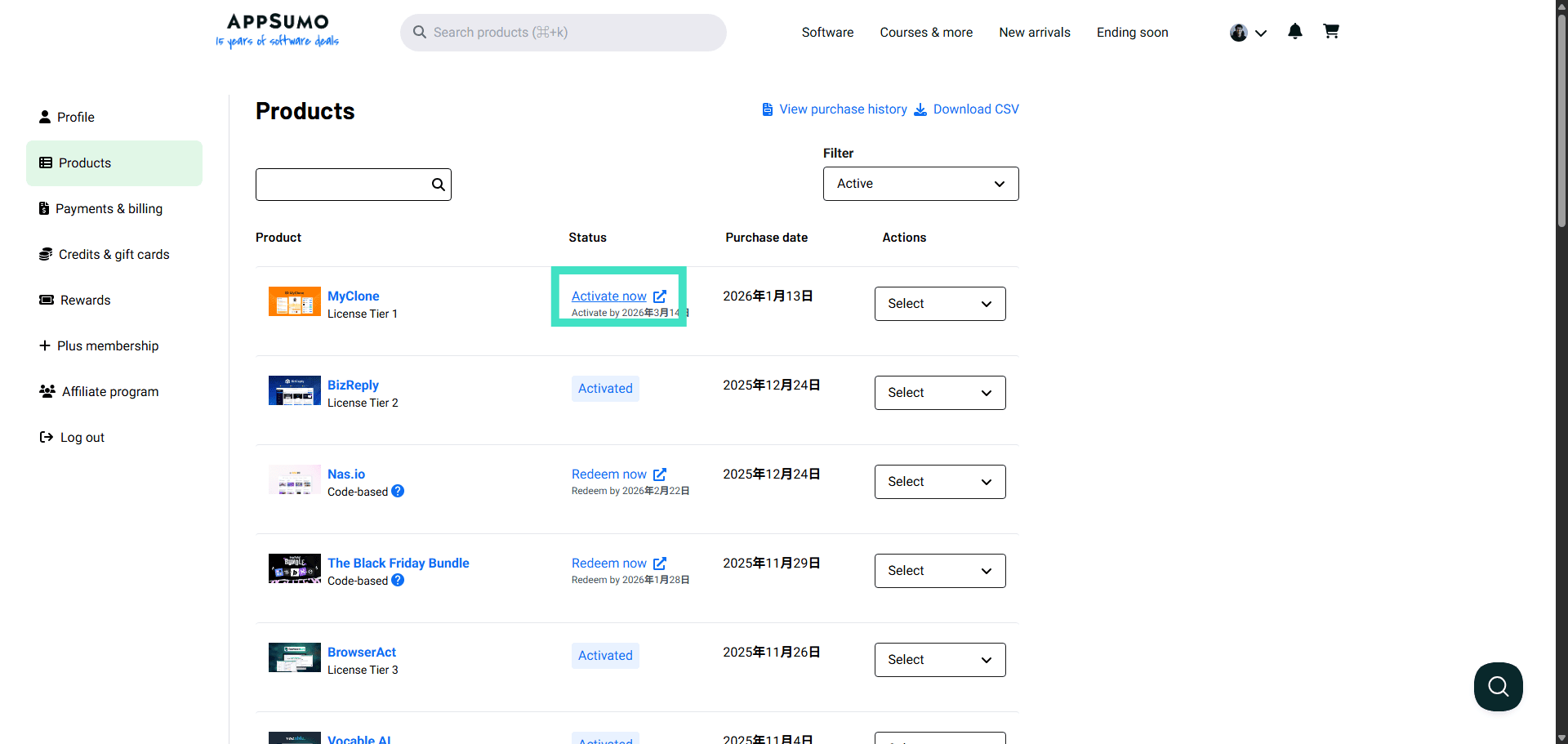
Step 2: View all your purchased products instantly
Step 3: Scroll down to see your full product library
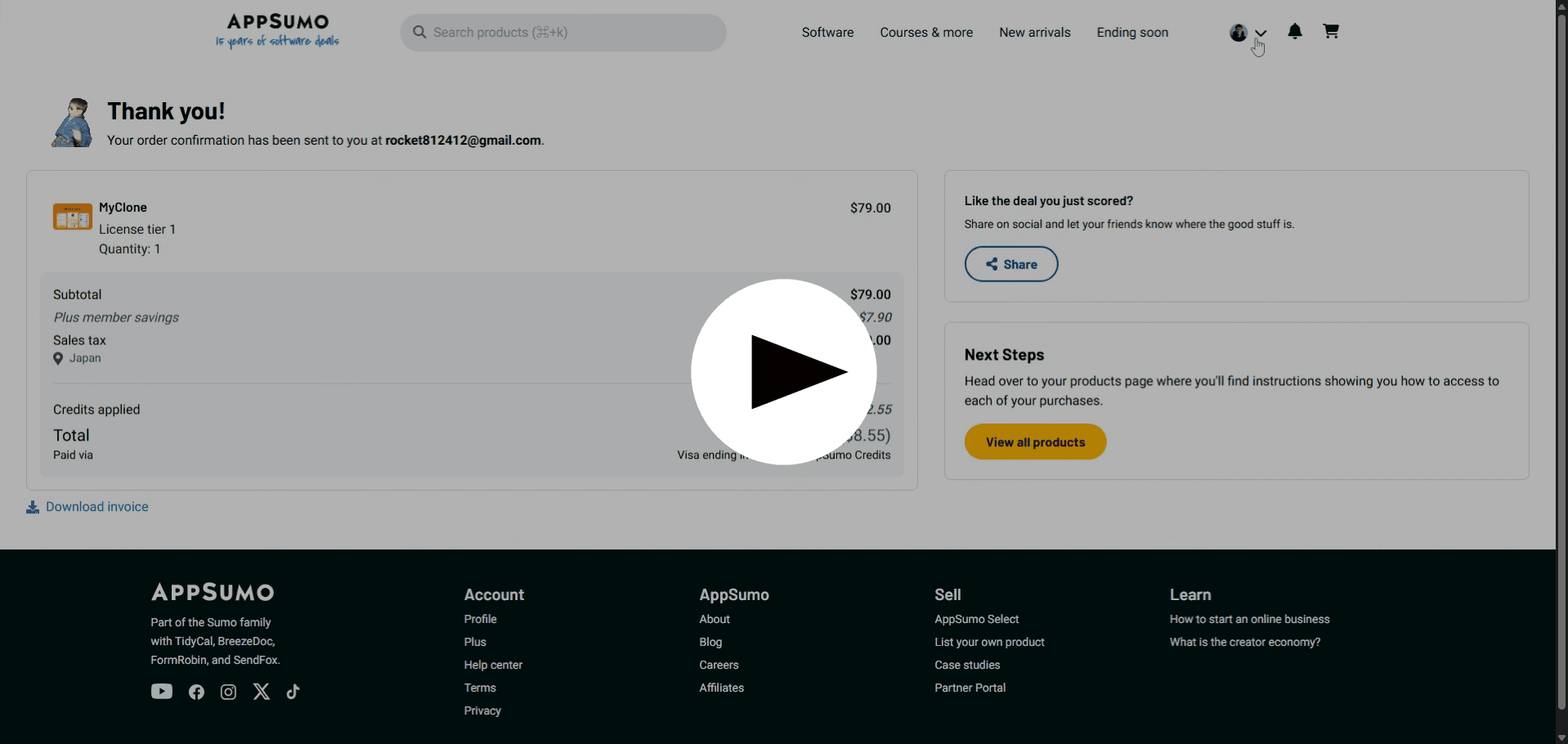
Here is the source of the video
Step 4: Activate your exciting new MyClone license
Step 5: Prepare to activate your purchase smoothly
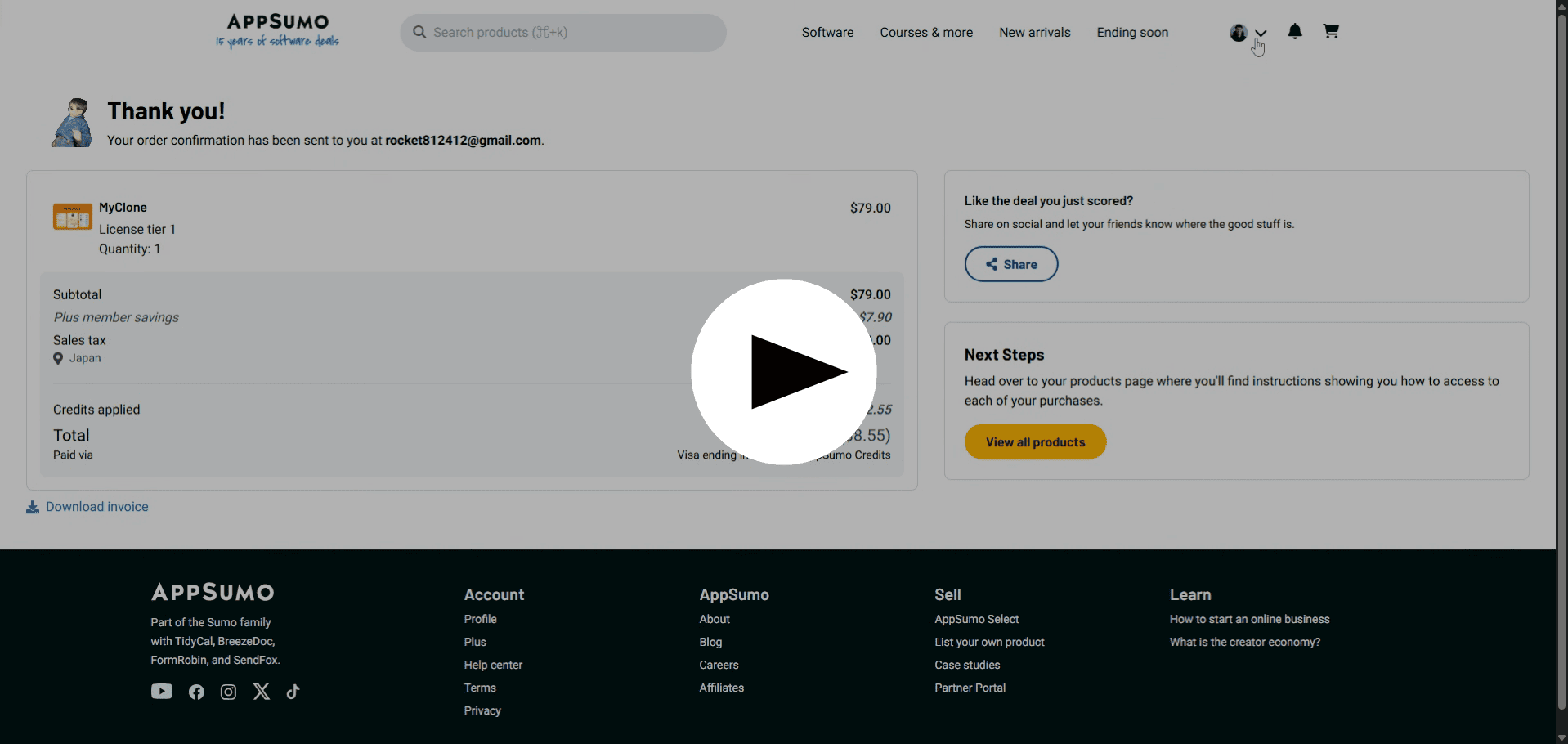
Here is the source of the video
Step 6: Initiate your MyClone activation process
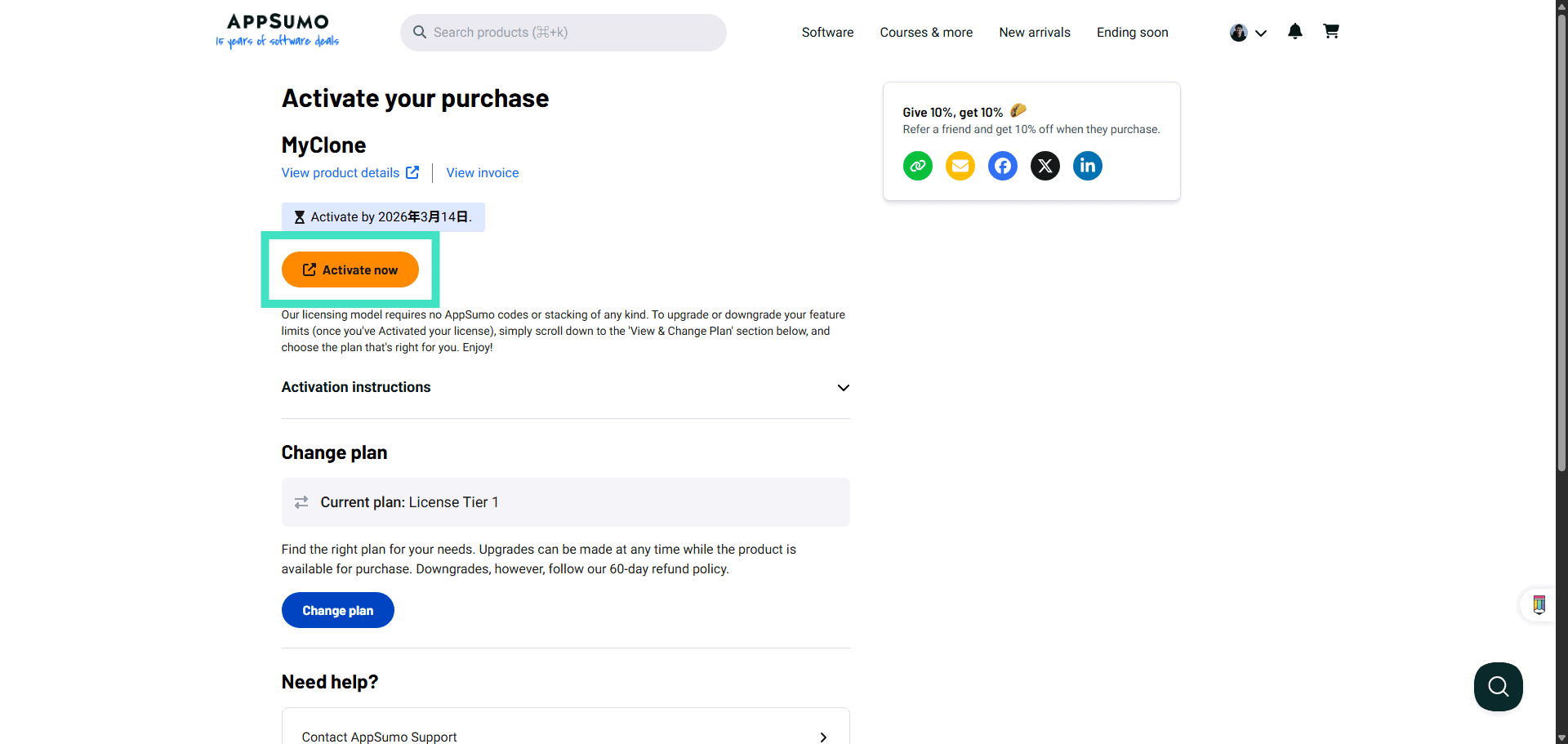
Step 7: Confirm activation and unlock new possibilities
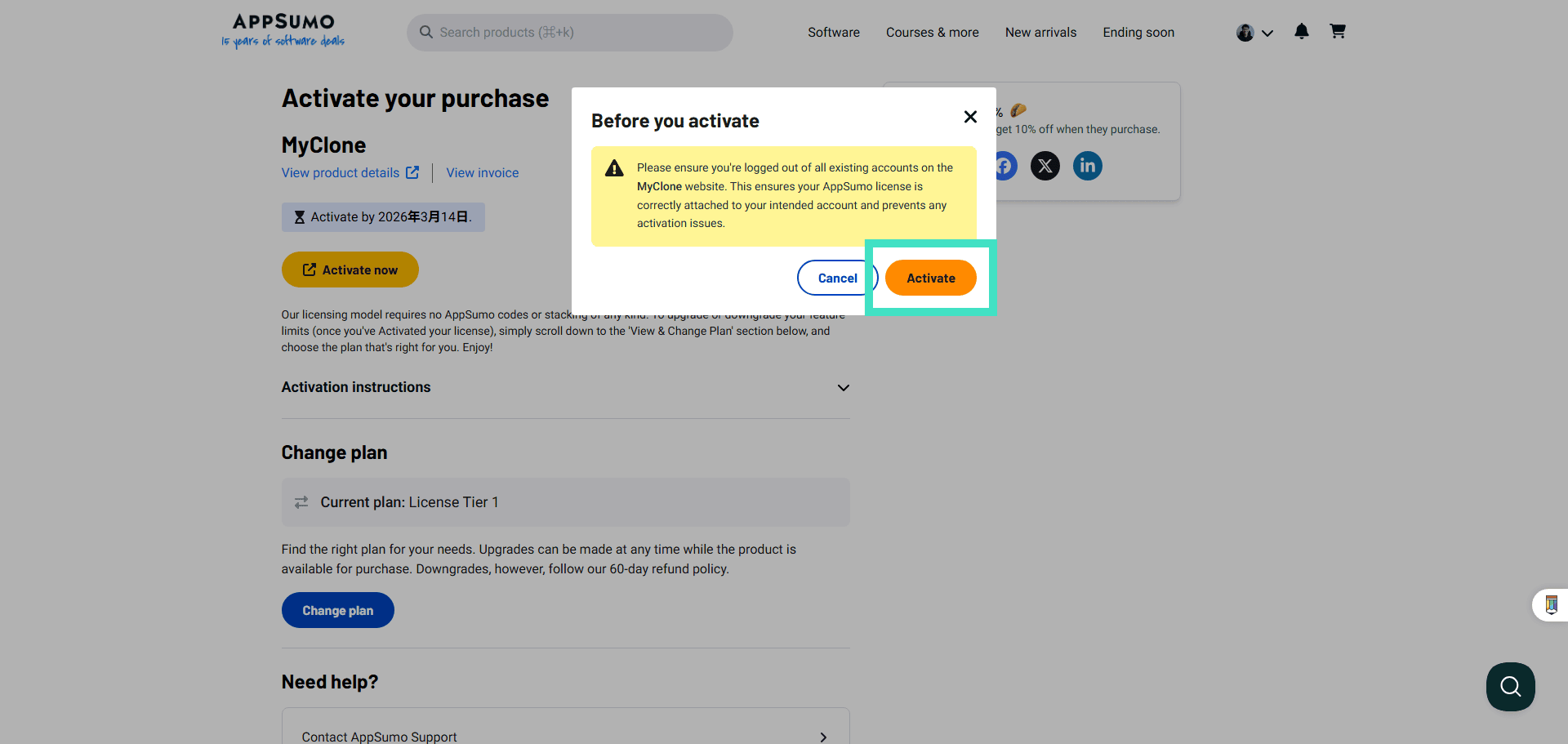
Step 8: Seamlessly launch your activated MyClone experience
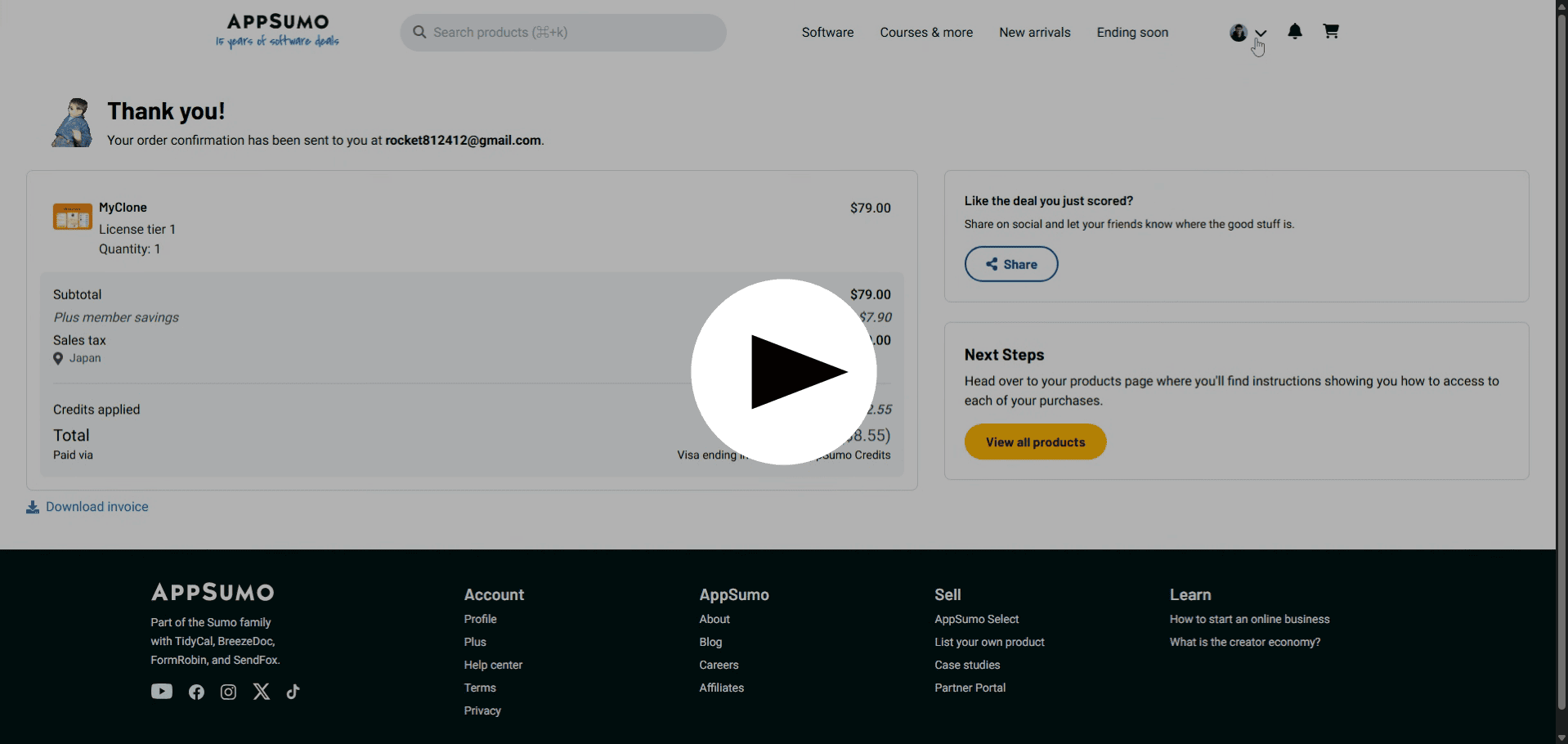
Here is the source of the video
Step 9: Enter your full name for a personalized experience
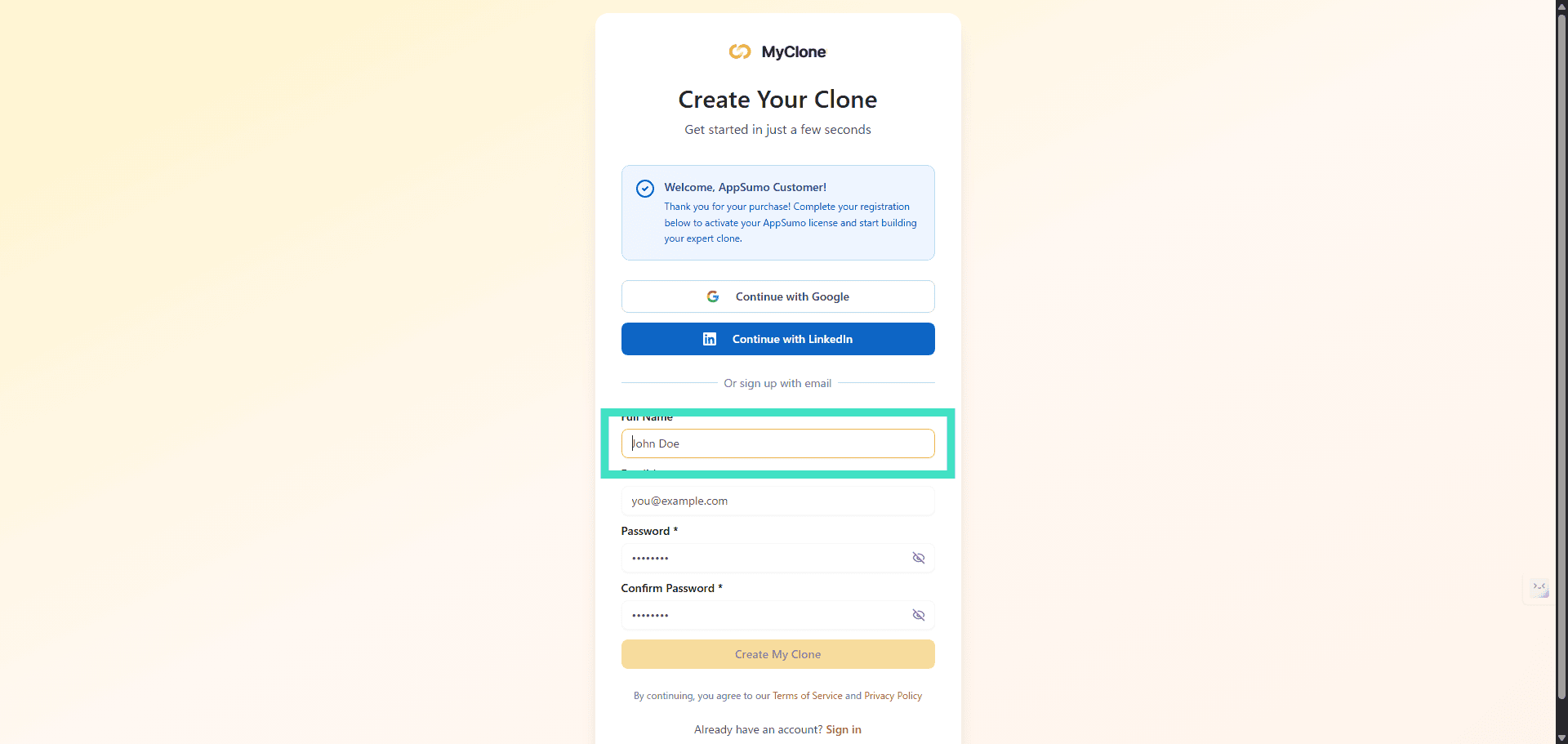
Step 10: Input your email for secure account setup
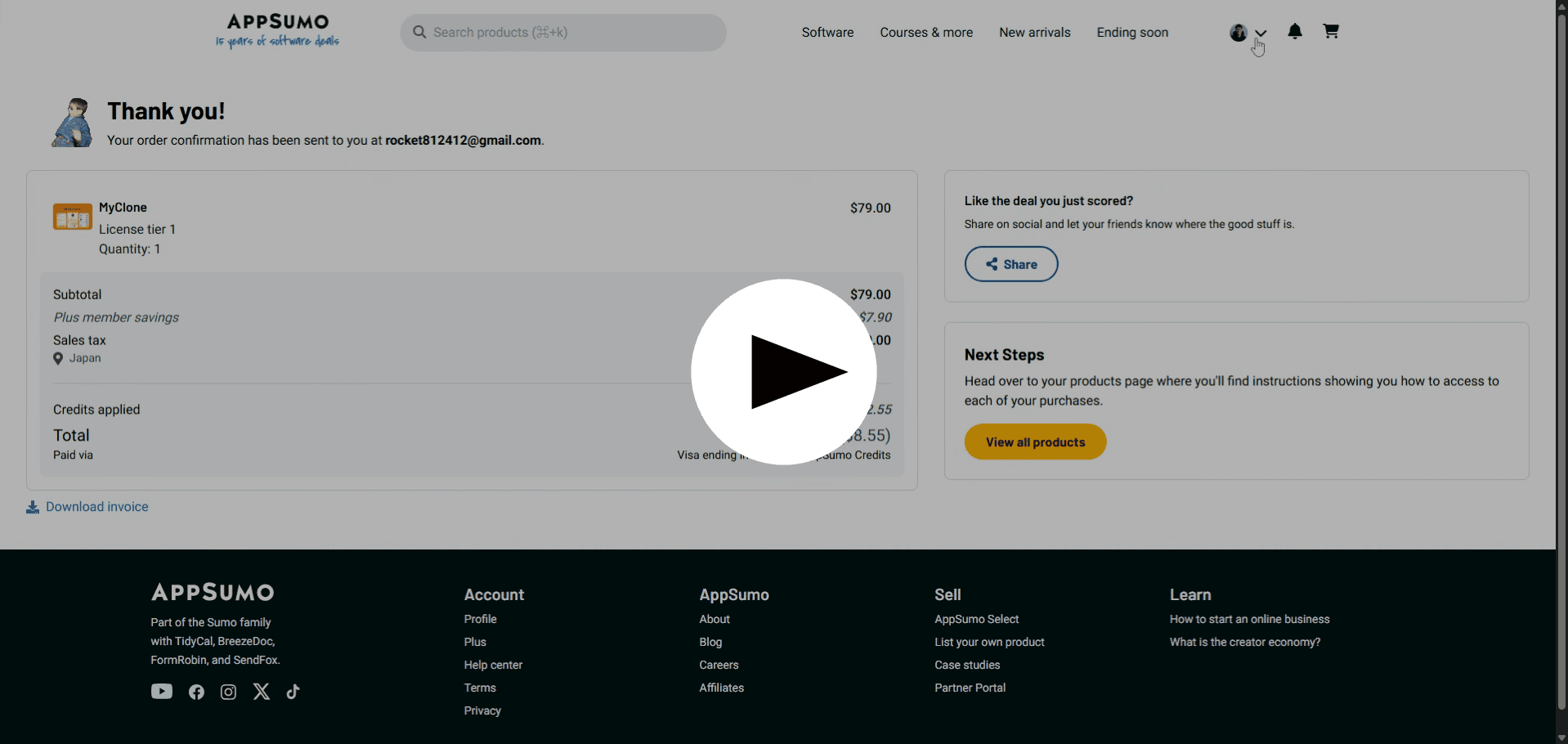
Here is the source of the video
Step 11: Create a strong password for ultimate security
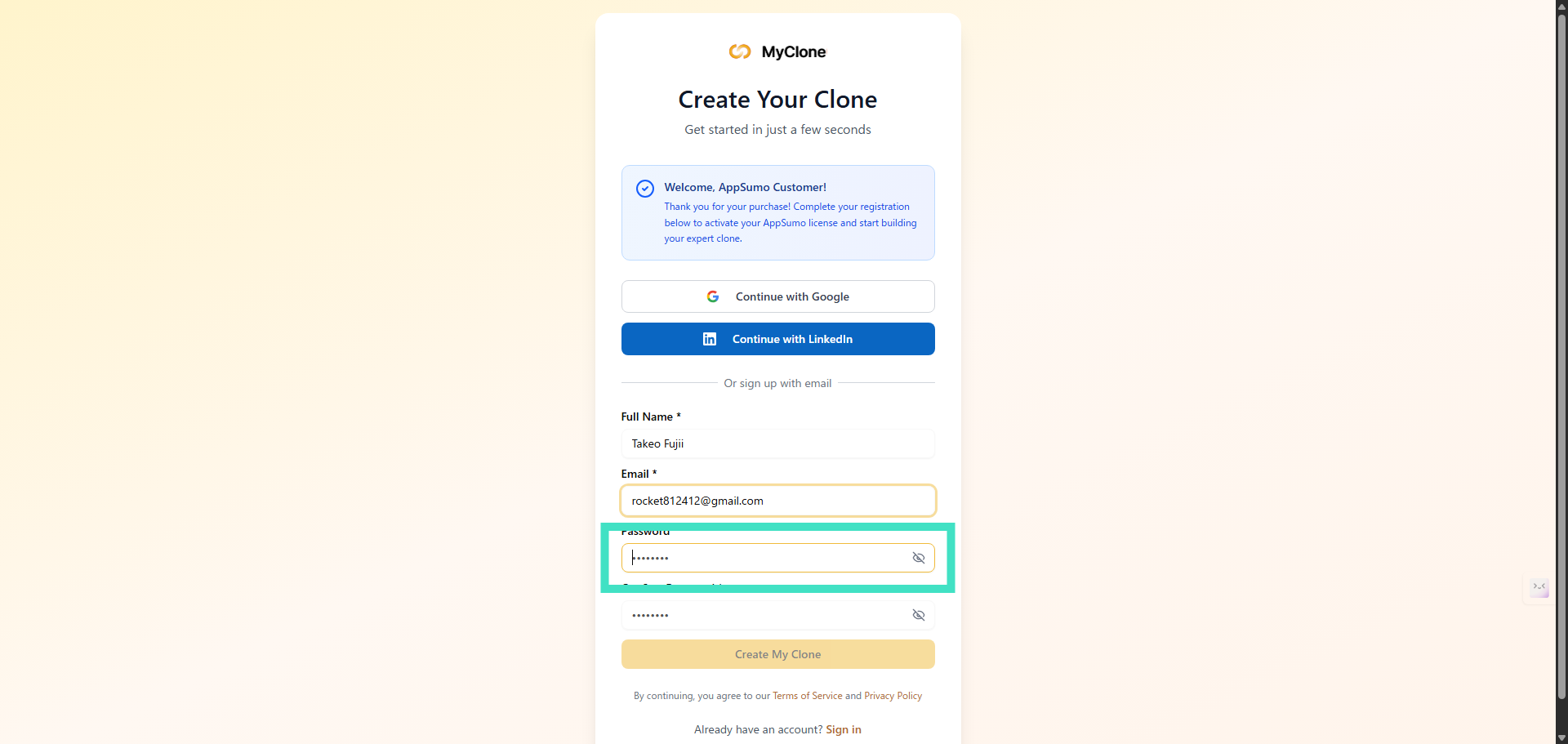
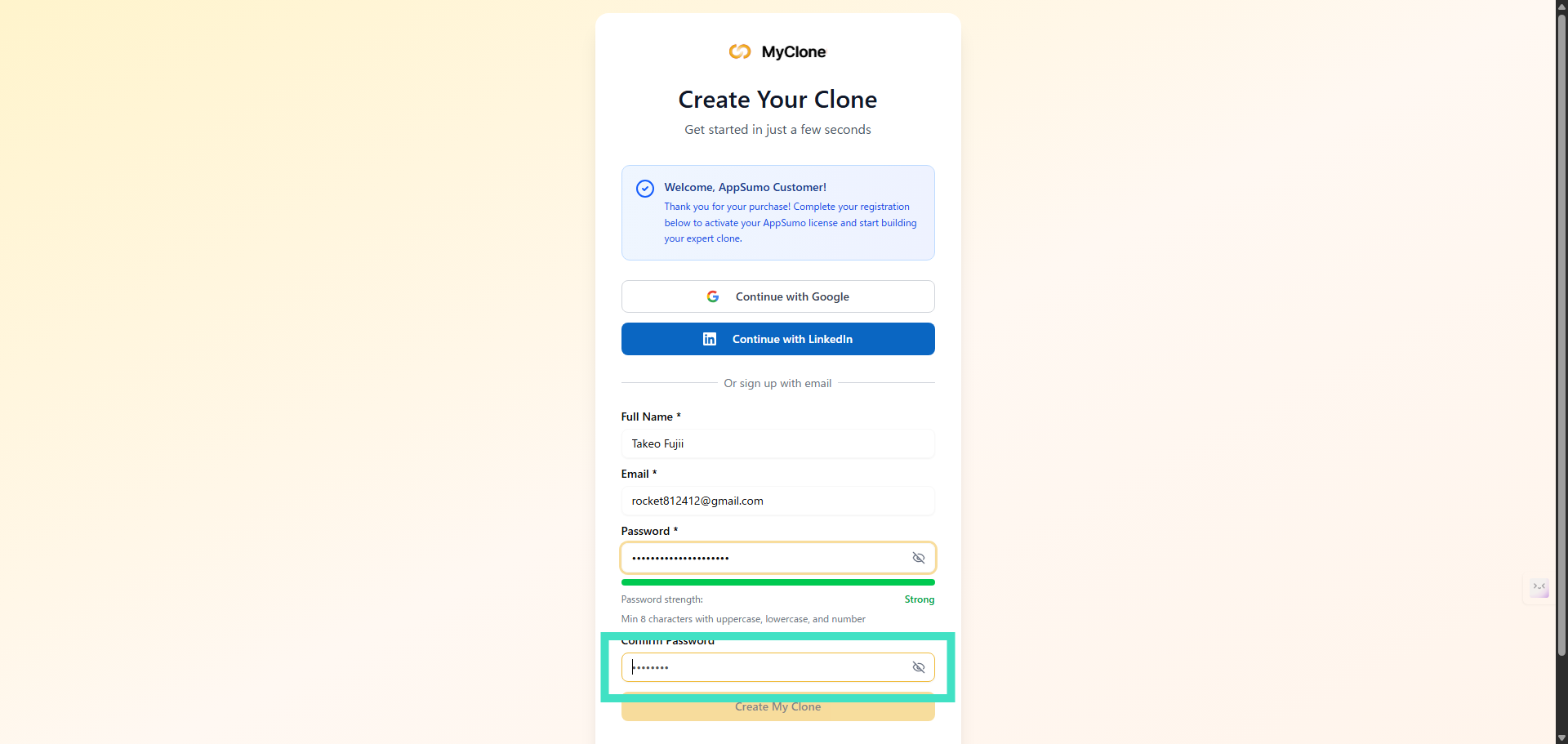
Step 12: Confirm your password for complete peace of mind
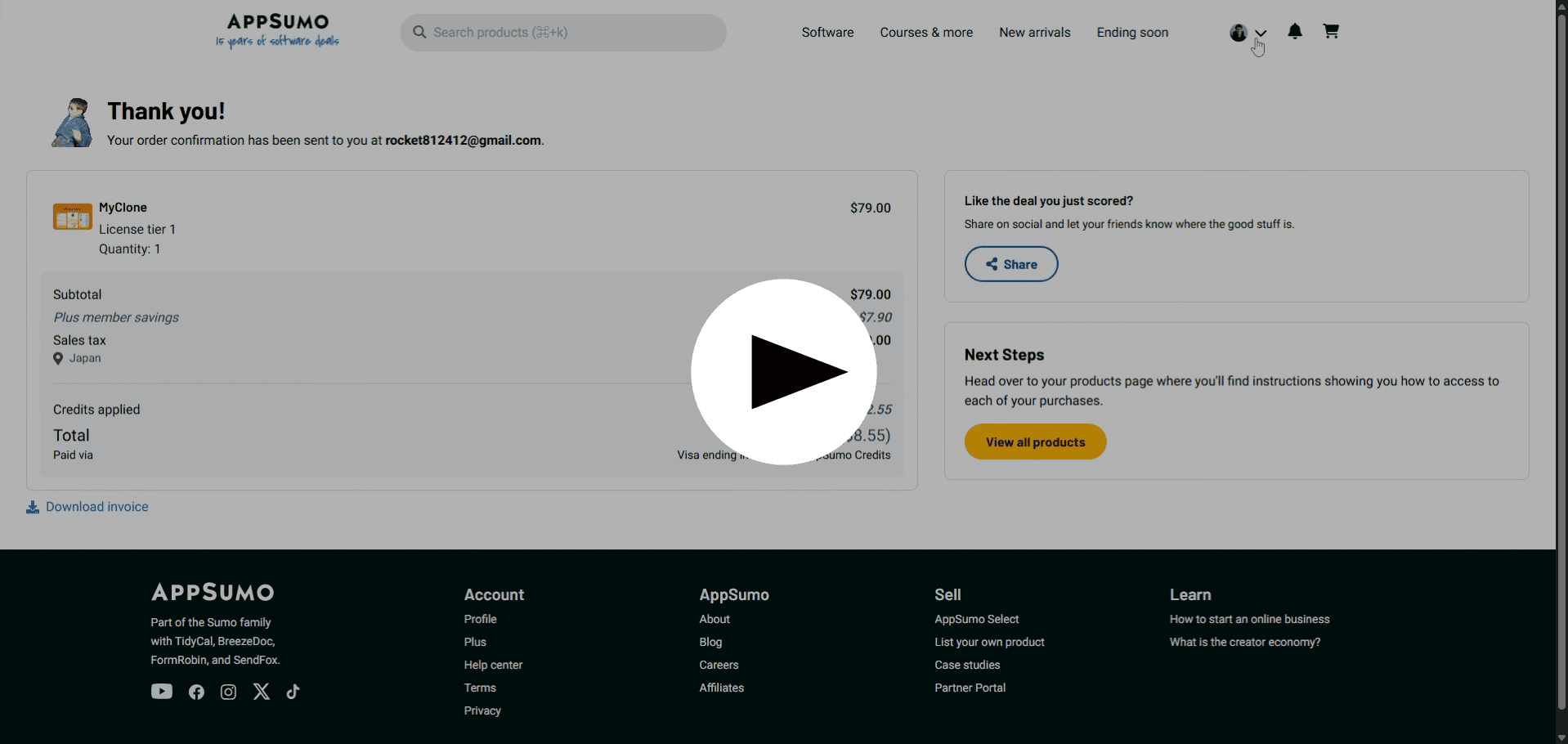
Here is the source of the video
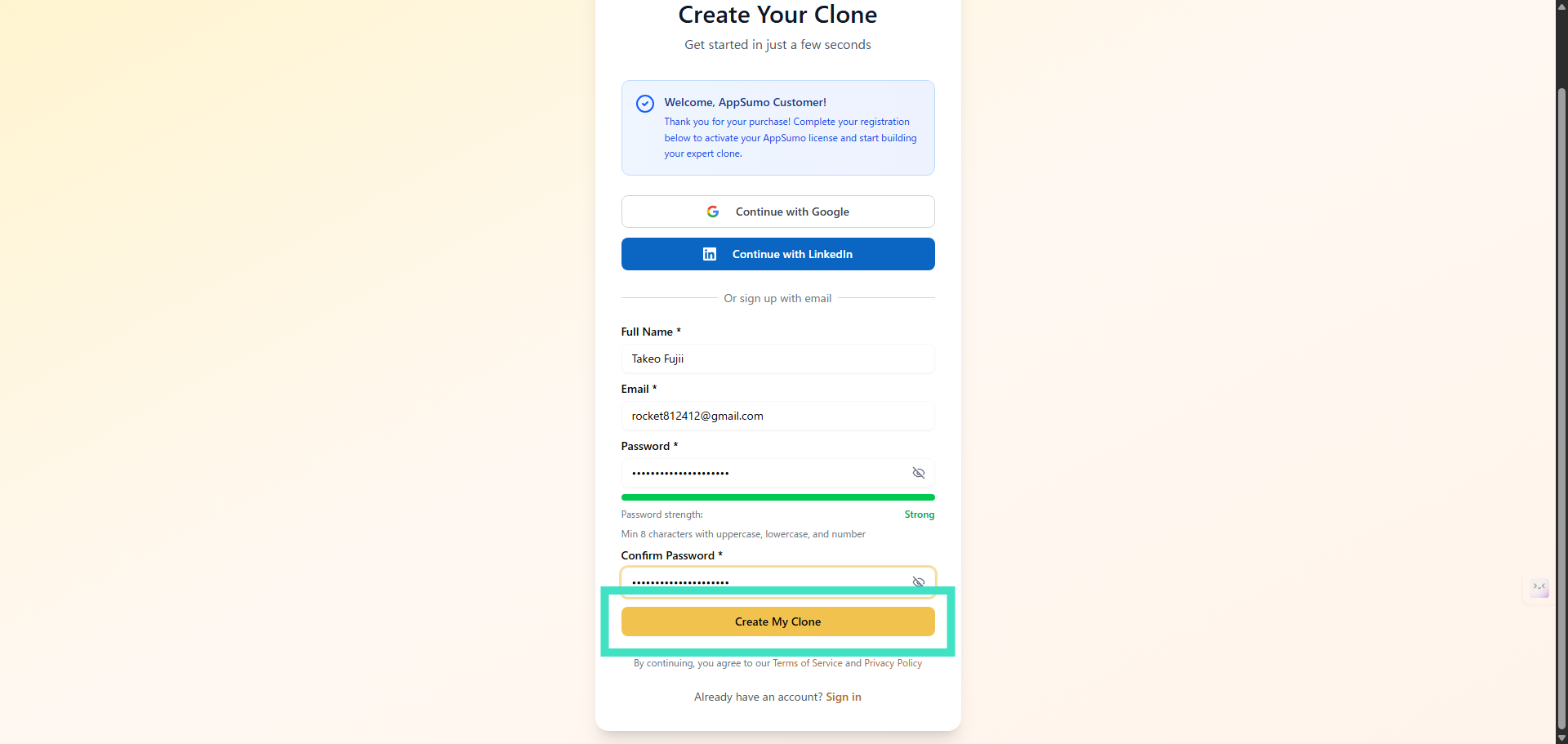
Step 13: Secure your account with a confirmed password
Step 14: Unleash your unique MyClone with a simple click
Step 15: Experience immediate registration success and validation
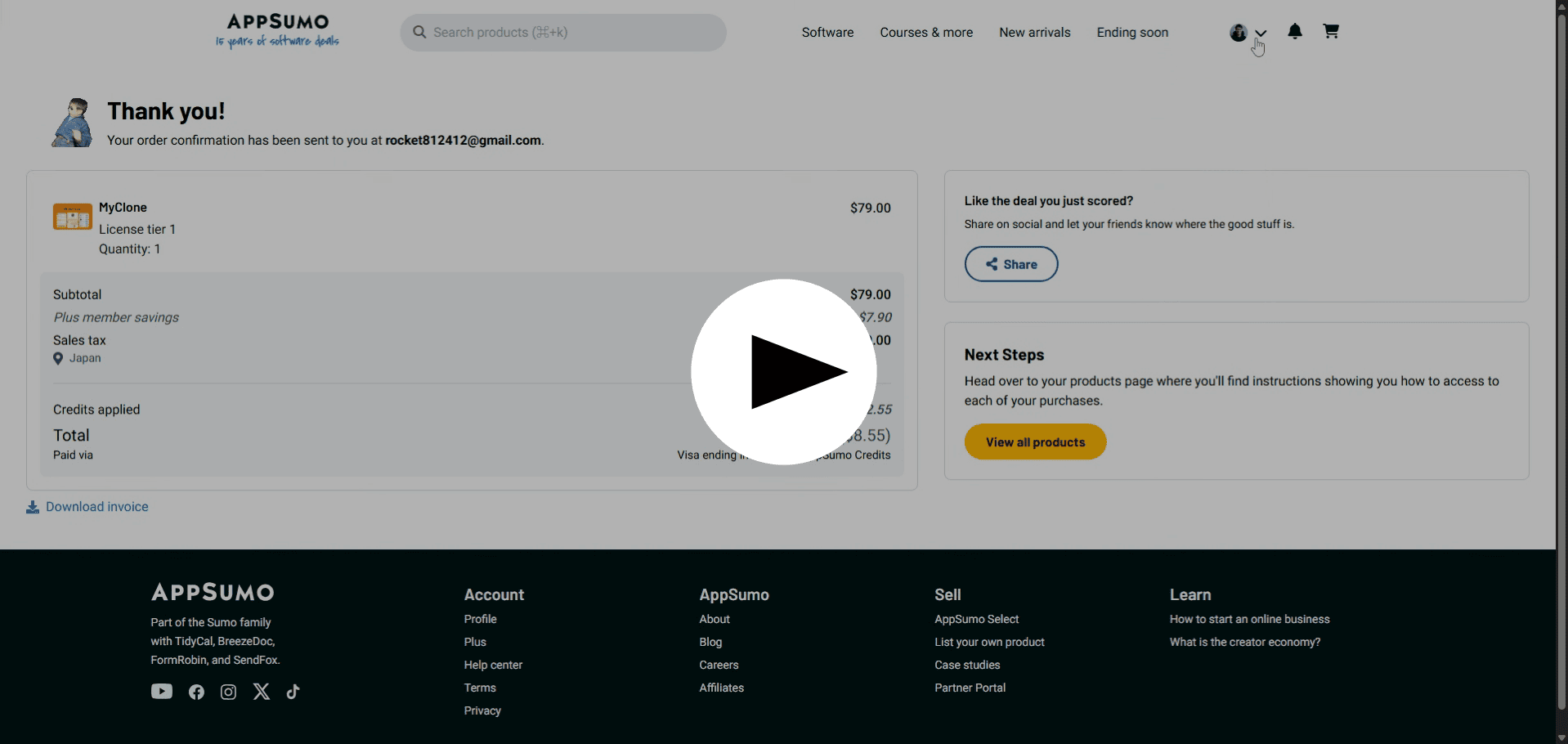
Here is the source of the video
Step 16: Save your login details for future seamless access
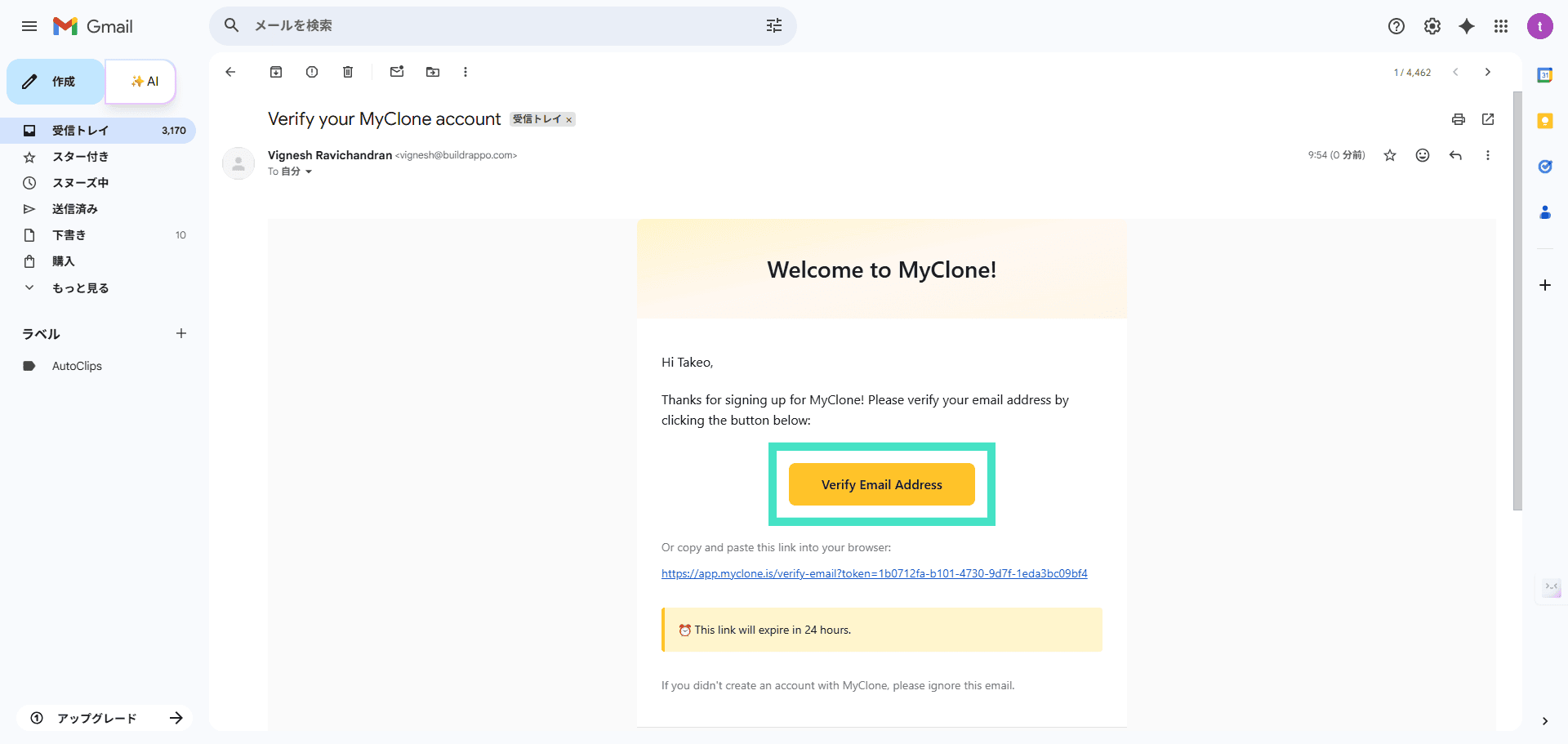
Step 17: Access your verification email to complete setup
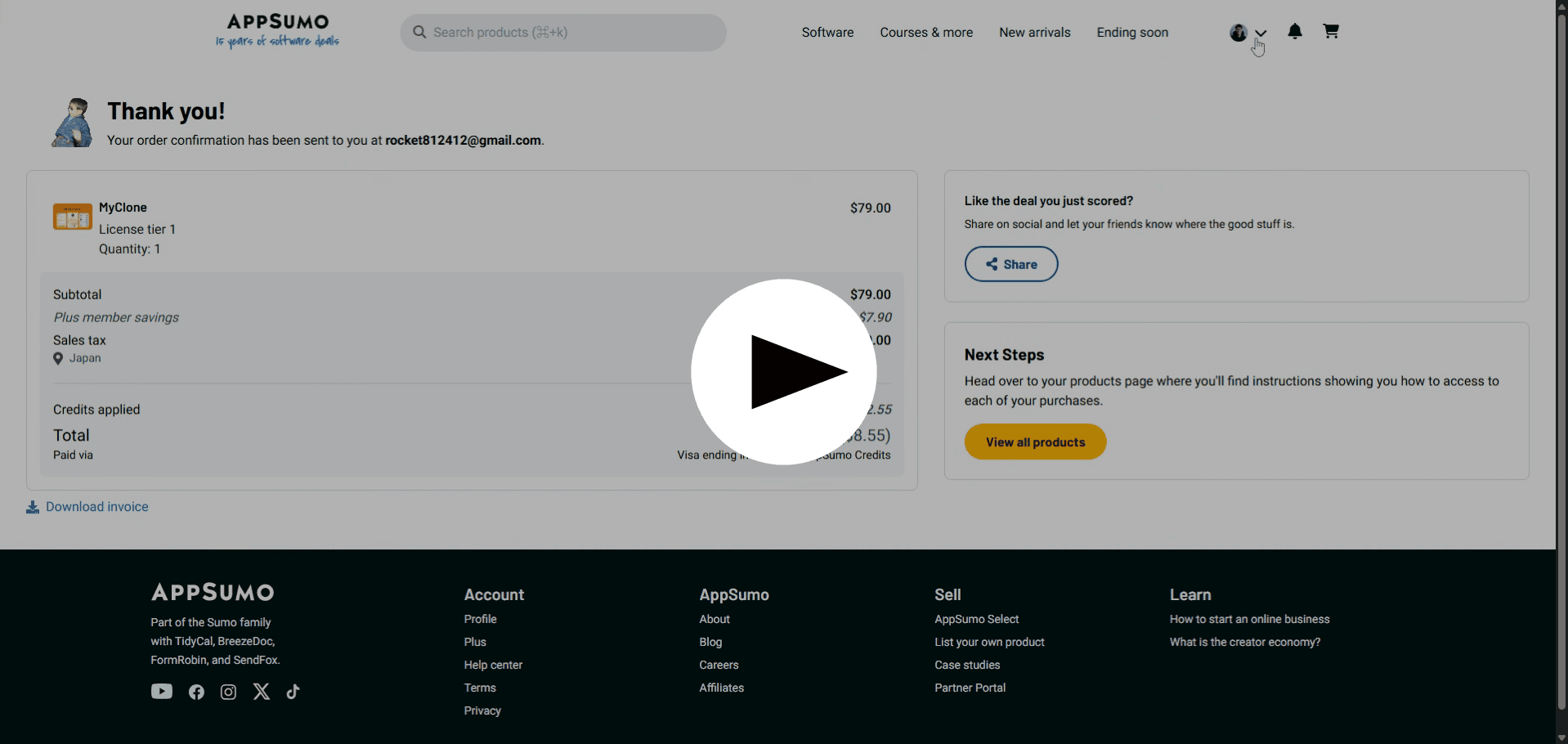
Step 18: Enter your saved credentials for effortless entry
Final thoughts
MyClone is a modern lever for small teams and solo operators. It replaces repetitive work with a trained assistant that speaks and types like you. Use it to deflect low-value conversations, capture leads, and create a consistent experience for visitors.
Start with text, secure your knowledge base, and then add voice. Treat the tool as an assistant, not a full replacement. With smart setup and a weekly review habit, MyClone can buy you time and sanity.
Ready to experiment? Build one persona, import five core pages, and watch how many repeats the clone handles in the first week. The result will tell you whether to scale up.