Key Highlights
- Your iPhone is full. pCloud gives you back your space.
- Get up to 10 GB of free cloud storage just for signing up.
- Turn on Automatic Upload to backup your photos and videos without thinking.
- pCloud acts like a digital vault for your iPhone, keeping every file safe.
- Access your stuff from any device, not just your iPhone.
- Stop deleting memories. Start storing them securely in the cloud.
Introduction
You know the notification. The one that ruins your day. “Storage Almost Full.” It’s the digital equivalent of a check engine light you can’t ignore. You start frantically deleting photos, apps, anything to make it go away. But what if you didn’t have to? What if there was a way to keep everything you love and still have a clean, fast iPhone? There is. It’s called pCloud, and it’s about to become your phone’s new best friend. Let’s get that space back.
Why Your iPhone Screams for Space (And How pCloud Comes to the Rescue)
Your iPhone is a memory-making machine. But every photo, every video, every downloaded song eats up precious real estate. Before you know it, your phone is slow, bloated, and begging for mercy. You’re forced to choose what to keep and what to sacrifice.
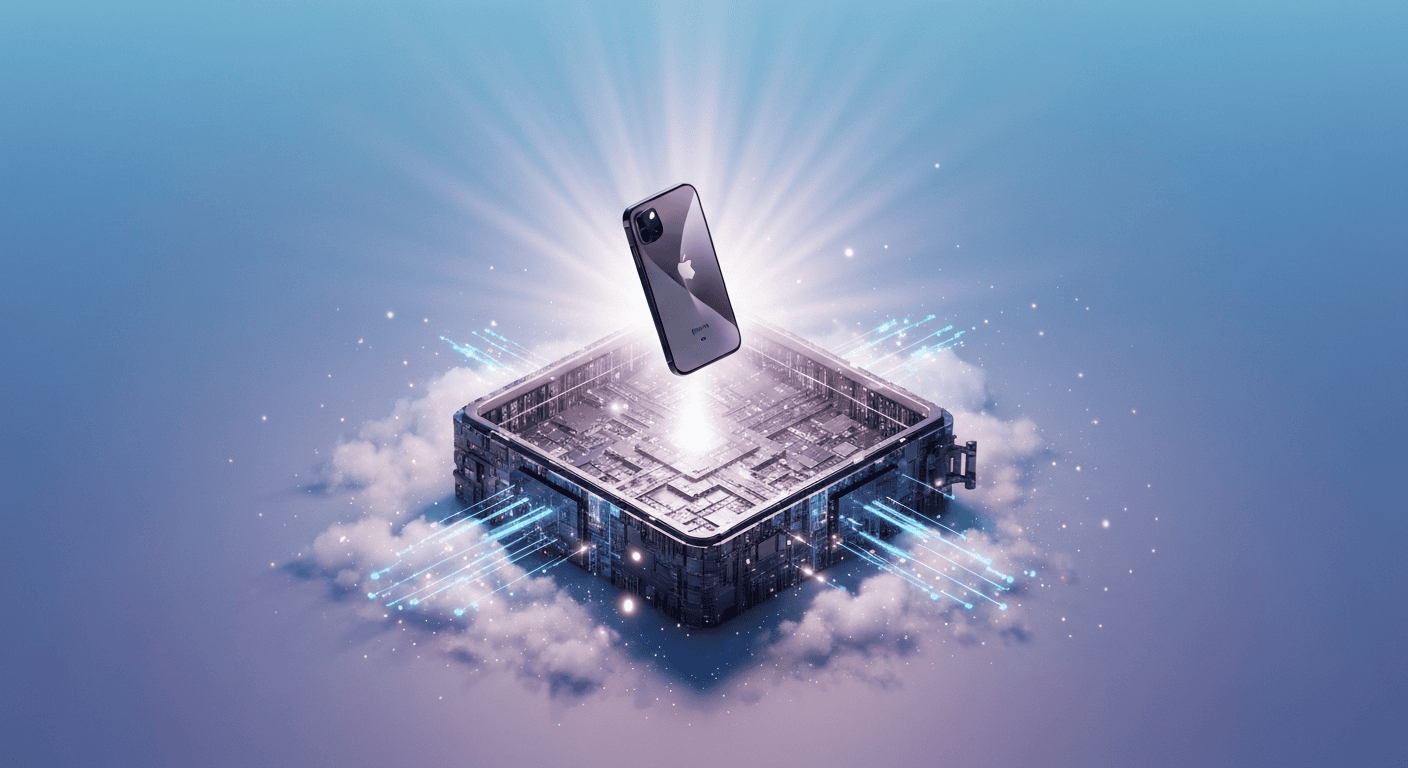
That’s where pCloud flips the script. Instead of deleting, you upload. Think of it as an infinite closet for your digital life. With secure cloud storage and an effortless automatic upload feature, pCloud doesn’t just solve your storage problem; it makes sure you never have one again.
Common Culprits: What’s Eating Up Your iPhone Storage
Ever wonder where all that space went? It’s not a mystery. It’s a traffic jam of digital stuff you create and collect every single day. These files are the usual suspects, silently hogging every megabyte they can find.
You’re looking at a lineup of storage thieves:
- Photos & Videos: Especially those crisp, high-resolution ones. They’re the biggest offenders.
- Music & Podcasts: Your offline playlists and saved episodes add up fast.
- Documents & Files: PDFs, work files, and random downloads create digital clutter.
- App Data: The hidden data that apps store to function.
Each one of these important files takes a bite out of your storage. pCloud lets you move all these folders and files off your device and into the cloud. You can upload photos, videos, music, and documents, clearing space without losing a thing.
Cloud Storage 101: The Genius of Using pCloud
So, what is this “cloud storage” magic?
It’s simple. Instead of storing files on your iPhone, you store them on pCloud’s secure servers. You can still access them anytime, from anywhere, but they no longer clog up your device. It’s like having a hard drive that lives on the internet.
pCloud takes this a step further. It gives you a pCloud Drive, a virtual space that feels like it’s part of your phone but isn’t. And is it safe? Absolutely. pCloud uses military-grade encryption (TLS/SSL and 256-bit AES) to lock down your data. Think of it as a digital Fort Knox. Your files are protected, synced, and always available, making it a seriously secure cloud storage option for your most precious data.
Getting pCloud Set Up on Your iPhone (No Tech Wizardry Needed)
Ready to make the switch? You might think this involves complicated settings or a long, boring process.
Wrong. Getting pCloud on your iPhone is ridiculously easy. There’s no tech jargon, no confusing steps. It’s designed to be simple, from download to your first upload. You just need the app and a few taps to create your pCloud account. We’ll walk you through getting the app and show you the key features made for your iOS device.
Download, Sign Up, and Dive In: Starting with the pCloud App
First things first. You need the app.
Head to the Apple App Store on your iPhone and search for pCloud. It’s a quick download. Once it’s installed, you’re just moments away from reclaiming your storage. This is your first step to uploading all those documents and photos.
Here’s the game plan:
- Tap “Get”: Download and install the pCloud app for iOS.
- Sign Up: Open the app and create your pCloud account. It’s fast, and you’ll immediately get up to 10 GB of free storage.
- Log In: Enter your new credentials, and you’re in.
That’s it. You’re officially inside your new digital storage space. The interface is clean, intuitive, and ready for you to start moving files. No confusing menus, just a clear path to a clutter-free phone.
Quick Tour: Navigating pCloud Features Built for iPhone Users
Once you’re in the pCloud app, you’ll see it’s built for action. It’s not just a storage bucket; it’s a command center for your files. Everything is organized and easy to find, so you spend less time searching and more time doing.
You’ll immediately notice how simple it is to create folders to organize your life. Want to share a massive video file with a friend? The file sharing feature generates a link in seconds. No more “file too large” errors.
The real power lies in the settings. You can tweak your upload settings to control quality, manage how files are organized, and more. The pCloud Drive ensures everything stays perfectly in sync across all your devices, giving you seamless access whether you’re on your iPhone, iPad, or computer.
Mastering the Art of Freeing Up iPhone Space with pCloud
You’ve got the app. You know your way around. Now for the main event: taking back your iPhone’s storage. This is where pCloud truly shines. It’s not just about storing files; it’s about actively clearing space from your device.
We’re going to show you how to put pCloud to work. With features like Automatic Upload, you can set up a system that keeps your phone lean and your files safe. Get ready to watch that storage bar shrink as your files find a new, secure home in your pCloud Drive.
Auto-Upload Photos & Videos: Turn Your Camera Roll Into Cloud Gold
This feature is a game-changer.
The Automatic Upload function in pCloud is your secret weapon against a full camera roll. Once you turn it on, every new photo and video you take gets backed up to your pCloud account automatically. No manual uploads. No forgetting. It just works.
Here’s how to set it and forget it:
- Go to the pCloud app Settings.
- Find and tap on Automatic Upload.
- Toggle it ON.
- Choose which albums to include.
Now, your memories are safe in the cloud the moment you make them. After they’re uploaded, pCloud even gives you the option to delete the local copies from your device with a single tap, instantly freeing up gigabytes of space. Your entire iPhone gallery is backed up without you lifting another finger.
Moving Docs, Music, and More: Uploading Every File that Clutters
Your iPhone isn’t just a camera. It’s an office, a music player, and a library. All those other important files need a home too. pCloud handles everything, not just photos and videos. You can manually upload any file cluttering your device.
Think about all the PDFs, presentations, and audio files scattered across your phone. With a few taps, you can send them all to your pCloud account. This is how you declutter every corner of your iPhone. Just select the files, hit upload, and watch them transfer.
Here’s a quick look at what you can move:
|
File Type |
How pCloud Handles It |
|---|---|
|
Documents |
Store and preview PDFs, Word docs, and more. |
|
Music |
Create and listen to offline playlists. |
|
Archives |
Upload and store ZIP files. |
|
Any File |
If it’s a file on your iPhone, you can upload it. |
Backup, Restore, and Stay Synced: Keeping iPhone Data Extra Safe
Freeing up space is great. But what about keeping your data bulletproof? pCloud is more than just extra storage; it’s a safety net. It’s about creating a secure backup of your digital life, ready to be restored whenever you need it.
Using pCloud for backup means your files are protected by top-tier encryption and stored in a secure cloud storage environment. We’ll show you how the backup works and how easy it is to sync and restore your data, giving you total peace of mind.
How Automatic Backup Works: Never Lose a Photo Again
Let’s talk about that Automatic Upload feature again, but this time, let’s call it what it really is: a continuous, effortless backup. When you enable it, you’re not just moving files. You’re creating a real-time copy of your most valuable data—your photos.
Every picture you snap is sent straight to your pCloud vault. If your phone gets lost, stolen, or just gives up, your memories are safe. This isn’t a once-a-month backup you have to remember to run. It’s always on, always protecting.
You have full control over the backup settings. You can choose to upload only over Wi-Fi to save mobile data or adjust the quality. There are no real limitations beyond your account’s storage size, so you can back up your entire photo library without worry.
Sync and Restore: Grabbing Your Stuff Back from pCloud
So your files are safe in the cloud. How do you get them back?
It’s as easy as putting them there. Whether you get a new iPhone or just need a file on your laptop, pCloud makes it simple. Just log into your account on any device, navigate to your folders, and download whatever you need. The sync feature ensures that the latest version of every file is always available everywhere.
Need to restore a whole folder of vacation photos to your new phone? Select it and tap download. Need one specific document for a meeting? Find it and open it directly from the app. You can access and restore your files from a pCloud backup anytime, anywhere. Your data is never out of reach.
Conclusion
To sum it all up, freeing up space on your iPhone with pCloud is a game changer. With its simple setup and powerful features, you can declutter your device and keep everything organized without breaking a sweat. Say goodbye to storage woes and hello to the freedom of having all your important files at your fingertips, safely stored in the cloud. Don’t let that “Storage Full” notification cramp your style! Take action today, and experience the ease of managing your iPhone storage like a pro. Want to see how it works? Get a free trial of pCloud and start your journey towards a clutter-free digital life!
Frequently Asked Questions
Is pCloud safe for storing my iPhone data?
Yes, pCloud is extremely safe. It uses TLS/SSL encryption during transfer and 256-bit AES encryption for files at rest. This military-grade security makes pCloud’s secure cloud storage a fortress for your iOS backup, keeping your private data private.
Are there any limits on what I can back up to pCloud from my iPhone?
The only limit is your storage space, which depends on your pCloud account plan. There are no file size limits, so you can upload large 4K videos without issue. Your upload settings give you control, but pCloud itself doesn’t restrict the types of files you can backup.
Can I access and restore my files from pCloud anytime?
Absolutely. You can access, download, and restore your files and folders from pCloud 24/7, from any device with the app or web access. Your data is always on-demand, whether you need to restore a single photo or your entire backup to a new device.